Frequently asked questions
Getting set up
Why do I need my business credit card in the BNZ app?
Authentication requests through Visa Secure can only be completed in the BNZ app, even if you have other BNZ apps like the BNZ Mobile Banking for Business and FlexiPurchase. This helps to protect your company against fraud.
I don’t have my accounts with BNZ, what do I need to do?
You don’t need to have any personal accounts with BNZ to have your business credit card linked to the BNZ app.
How do I download the BNZ app?
You can download the BNZ app from the App store (iPhone and iPad) or Google Play Store (Android phone).


I’ve called the call centre and they asked me for my access number, however I don’t have one, or can’t remember it.
Please stay on the line. You will be connected with a banker who will help you set your business credit card up in the BNZ app.
Is there a fee for using Visa Secure MFA?
No, Visa Secure MFA is a free service provided by BNZ to protect your card.
What are the additional benefits of having my business credit card in BNZ app?
There are many benefits to having your business credit card in the BNZ app. It gives you better visibility and control of your payments by allowing you to:
- Activate your new or reissued card, at a time and place that suits you
- Manage your PIN.
- Provide us notifications on when you’re travelling.
- View your payments and available balances.
- Manage your card controls (turn on/off international payments, PayWave payments, online payments and turn on/off ATM transactions (if the card has been enabled for ATM transactions)).
- Request a replacement card if it’s lost or damaged.
Plus, we’ll continue to release more functionality within the BNZ app. By having your card linked to the BNZ app, you’ll have access to these new features as they become available.
Security
After I’m set up, how do I authenticate my online transaction?
After submitting a transaction, you may receive a pop up asking you to authenticate it. Once your card is correctly set up with us, you’ll be able to authenticate your online transactions using the BNZ app.
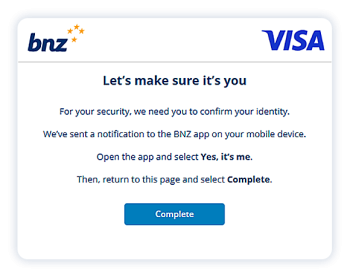
- When prompted, open the BNZ app.
- Check that the transaction details and amount are correct.
- Confirm your transaction by tapping Yes, it’s me. If the transaction details aren’t what you expected, tap No, don’t allow. You have three minutes to respond to the prompt message.
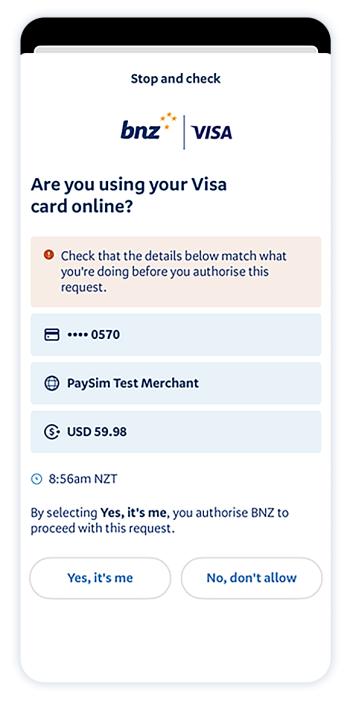
If you can’t confirm it’s you in the BNZ app, your transaction won’t be processed.
Why would I see a BNZ authentication screen?
There are several reasons why this screen may appear, for example if your card was used for a large or uncharacteristic transaction. This will only happen when making online transactions at Visa Secure participating merchants. It’s another way to help keep your cards safe.
What do I do if I’ve locked my card?
If your card is locked, you won’t be able to use it to buy from websites that use Visa Secure MFA . To unlock your card, you’ll need to call us on 0800 275 269.
Is Visa Secure MFA different from my CVV code?
Yes, the 3-digit CVV on the back of your card is one layer of security. Visa Secure MFA is a second layer that happens after you’ve entered your 3-digit CVV.